Geo Tagging MCD: How to Add Location Data to Photos
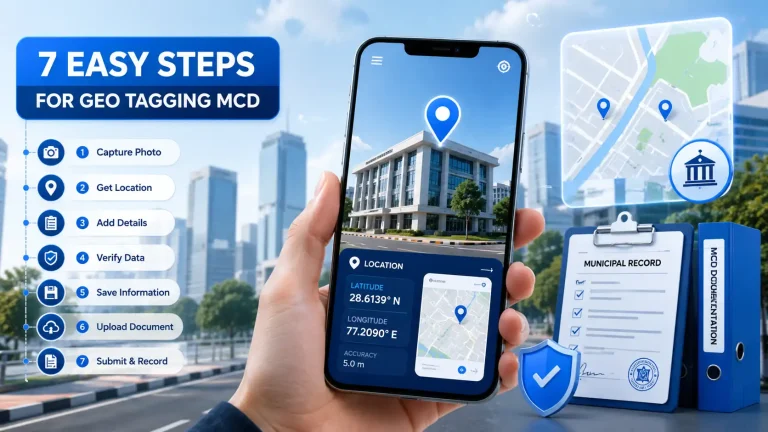
If you are searching for geo tagging MCD, you may be trying to understand how location information can be added to photographs, especially for work connected with the Municipal Corporation of Delhi (MCD). Geotagged photos can help document locations, verify where an image was captured, and organize visual records more efficiently.
A photo with GPS information contains location details such as latitude and longitude in its metadata. Depending on the device and method used, this information may be recorded automatically when the photograph is taken or added later.
For MCD-related documentation, field surveys, property inspections, civic work, construction records, and location-based reporting, knowing how to create and manage geotagged images can be useful.
This guide explains what geotagging means, how it works, and how to add geotag to existing photos using phones and online tools.
What Is Geo Tagging?
Geo-tagging is the process of attaching geographical information to a photograph or other digital file.
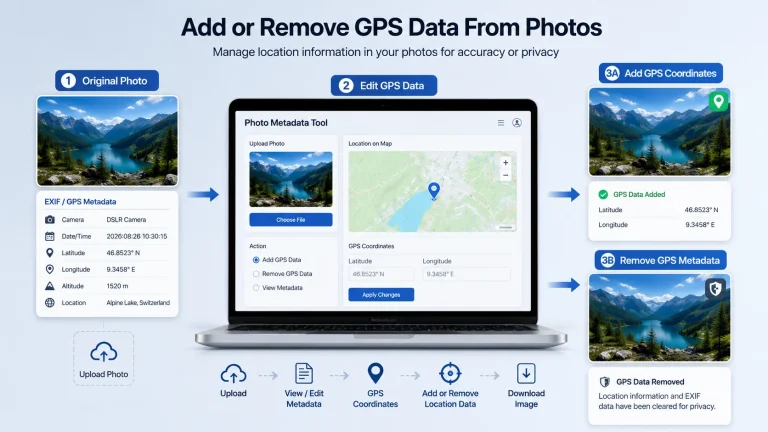
The location is generally stored inside the image’s EXIF metadata. Depending on the device, this information can include:
- Latitude
- Longitude
- Date and time
- Camera information
- Altitude, when available
- Device information
When GPS is enabled on a smartphone, the camera can often record the location automatically.
For example, imagine taking a photograph of a road repair project in Delhi. If location services are active, the photograph may store the coordinates of the place where it was captured. Later, compatible applications can read those coordinates and display the location on a map.
This is one reason geotagged photographs can be useful for location-based documentation.

Why Is Geo Tagging Useful for MCD-Related Work?
The phrase “geo-tagging MCD” can refer to location-based photo documentation associated with municipal work in Delhi.
Geotagging can make photographs easier to organize and verify. Instead of relying only on a file name, location metadata can provide additional information about where the photograph was taken.
Potential uses include:
Field Inspections
Staff or field workers may need to photograph roads, buildings, drains, public spaces, construction activity, or other municipal locations.
Adding geographical information can make the resulting photographic record more useful.
Location Verification
GPS coordinates can provide an additional reference when reviewing photographs later.
However, geotag data should be treated as supporting information rather than absolute proof of every circumstance surrounding an image.
Organizing Large Photo Collections
If you have hundreds of photographs from different locations, geographical metadata can make sorting and mapping them easier.
Documentation
Location-tagged images can help create a more structured record of field visits and site observations.
How Does Geotagging Work?
Most smartphones determine location using GPS and other location technologies.
When your camera application has permission to access location information, the phone can associate the current coordinates with the photograph.
The basic process looks like this:
Location services: Camera captures image → Coordinates are recorded → GPS data is stored in photo metadata.
The exact process differs between Android phones, iPhones, camera applications, and operating systems.
If location permission is disabled, the photograph may not contain GPS coordinates even though the image itself was captured normally.
How to Take a Geo Tag Photo on iPhone
If you use an iPhone, you can normally enable location access for the Camera application through the privacy settings.
A typical process is
- Open Settings.
- Go to Privacy & Security.
- Select Location Services.
- Make sure Location Services are enabled.
- Find the Camera application.
- Allow the appropriate location access.
- Open the Camera app.
- Capture your photograph.
The wording and available options can vary slightly between iOS versions.
After taking the photograph, open it in the Photos app and check its information panel. If location information was recorded, the photo may display a map or location details.
Important iPhone Tip
Before taking photographs for field documentation, check location access in advance.
A camera can still capture photographs when location access is unavailable, so simply seeing a successful photograph does not necessarily mean GPS information was saved.
How to Take a Geo Tag Photo on Android
Android devices use different interfaces depending on the manufacturer and Android version.
On many phones, you can look inside the camera settings for an option related to:
- Location tags
- Save location
- Geo-tagging
- Location information
You should also make sure the phone’s location service is enabled.
A general process is
- Turn on Location Services.
- Open your Camera app.
- Open camera settings.
- Look for a location or geotagging option.
- Enable it.
- Return to the camera.
- Capture the photograph.
Afterward, open the image details to check whether coordinates were saved.
How to Add Geotags to Existing Photos
What if you already took the photographs without GPS information?
You may still be able to add location information afterward.
This process is different from automatic geotagging because you are manually assigning coordinates to an existing photograph.
You can use a compatible photo metadata editor or online geotagging tool.
A typical workflow is
- Select the existing photograph.
- Open it in a geotagging or metadata tool.
- Enter the location.
- Select the correct position on a map if available.
- Save the updated image.
- Download or export the modified file.
- Check the metadata afterward.
For accurate documentation, do not guess a location simply because the photograph looks familiar.
If the original location is known from field records, GPS logs, a survey, or another reliable source, use that information.
How to Add Geotags to Existing Photos Online
An online tool can be convenient when you do not want to install desktop software.
You can use a browser-based geotagging tool to upload an image, select its location, and add geographical metadata.
A useful workflow is
Upload photo → Choose location → Add coordinates → Save/export → Verify metadata
For example, if a photograph was taken at a known location in Delhi but the camera did not save GPS information, you can select that location manually.
When using an online service, pay attention to privacy.
Photographs from municipal projects, private properties, documents, or other sensitive locations should not automatically be uploaded to an unfamiliar website.
How to Check Whether a Photo Already Has GPS Data
Before adding new coordinates, check whether the image already contains location metadata.
On many smartphones, you can open the image and view its information or details.
Depending on the device, you may see:
- Map location
- Coordinates
- Date
- Time
- Camera model
- Image dimensions
- File size
If coordinates are already present, adding another location may be unnecessary.
You should also remember that screenshots, social media uploads, messaging applications, and image-editing software can sometimes remove or alter metadata.
Can You Geotag Photos Without GPS?
Yes, a photograph can be geotagged manually even when GPS was not active when the picture was captured.
However, there is an important distinction.
Automatic geotagging records the location based on the device’s location information at the time of capture.
Manual geotagging adds a location afterward.
For example, suppose you photographed a municipal site but had location services disabled. If you later have reliable coordinates for that site, you can manually add those coordinates to the image.
The resulting photograph may contain geographical metadata, but that does not change the fact that the coordinates were added after capture.
How Accurate Is a Geotagged Photo?
GPS accuracy varies according to the device, environment, satellite visibility, network conditions, and other factors.
Open outdoor areas can provide better positioning than locations surrounded by tall buildings.
Urban environments such as Delhi can sometimes present additional positioning challenges because buildings and other structures may affect location signals.
For important documentation, record supporting information such as
- Site address
- Date
- Time
- Coordinates
- Project or inspection reference
- Relevant photographs
Combining several records can create a stronger documentation trail than relying on a photograph’s metadata alone.
Best Practices for Geo Tagging MCD Photos
If you are preparing photographs for municipal or field-related documentation, consistency matters.
1. Enable Location Before Starting
Do not wait until after the inspection to discover that your camera was not recording locations.
2. Check a Test Photograph
Take one test image and inspect its information before photographing the entire site.
3. Keep Original Files
Avoid immediately editing or compressing original photographs.
Keep an untouched copy whenever the images may be needed for official records.
4. Use Consistent File Names
A useful naming structure can include the project, location, date, and sequence number.
For example:
road-inspection-delhi-2026-09-21-001.jpg
5. Verify Important Coordinates
If you manually add coordinates, confirm the location before saving the final file.
6. Protect Sensitive Information
GPS data can reveal exactly where a photograph was taken.
Think carefully before sharing geotagged images publicly, particularly when they show private residences, restricted locations, or sensitive facilities.

Geo Tagging vs Location Sharing
These two concepts are related but not identical.
Geotagging attaches location information to a file, usually through metadata.
Location sharing sends your current or selected location to another person or service.
For example, a photograph can contain GPS coordinates without anyone receiving your live location.
Understanding the distinction is particularly important when handling field photographs or sharing images online.
Can Social Media Remove Geotags?
Some social platforms and messaging services process uploaded images. During that process, metadata may be removed or changed.
Therefore, do not assume that a photograph will retain its original GPS information after uploading it to another platform.
If the original metadata matters, maintain a separate copy of the original image.
Frequently Asked Questions
What does “geo-tagging MCD” mean?
Geo-tagging MCD generally refers to adding geographical location information to photographs or records associated with municipal work in Delhi. The exact requirements can depend on the particular MCD workflow, department, project, or application involved.
How to add a geotag to existing photos?
You can add a geotag to an existing photograph using a compatible metadata editor or geotagging application. Select the image, choose its correct location or coordinates, save the metadata, and then verify that the GPS information was added.
How to take a geo-tagged photo on an iPhone?
Enable Location Services and allow the Camera app to access your location. Then take the photograph normally. You can check the image information afterward to see whether location data was recorded.
How to add a geotag to existing photos online?
Use a reputable online geotagging or photo metadata service that supports GPS information. Upload the image, select its correct location, add the coordinates, and export the updated image. Review the service’s privacy policy before uploading sensitive photographs.
Can I geotag an old photo?
Yes. If you know where the photograph was taken, you can manually add the location to its metadata using appropriate software or a compatible online tool.
Does every smartphone automatically geotag photos?
No. Automatic geotagging depends on device settings, camera permissions, location services, and the camera application’s configuration.
Can a geotag prove where a photo was taken?
A geotag provides location metadata associated with the image, but it should not automatically be treated as conclusive proof of every circumstance. Metadata can potentially be edited, removed, or changed.
Why does my photo have no location information?
Possible reasons include disabled Location Services, restricted camera permissions, disabled camera geotagging, insufficient positioning information, or metadata being removed during editing or sharing.
Can I remove a geotag from a photo?
Yes. Depending on your device or software, you may be able to remove the location information from the image’s metadata. This can be useful before publicly sharing photographs.
Final Thoughts
Geotagging turns an ordinary photograph into a more informative location-based record. For people working with field inspections, property documentation, civic projects, or geo-tagging MCD workflows, understanding how location metadata works can make photo management much easier.
If your phone supports automatic geotagging, enable it before beginning your fieldwork. For photographs captured without location data, you can add coordinates afterward using suitable software or an online tool.
The most important point is accuracy. When adding a location manually, use reliable information rather than estimating the position. And whenever photographs contain sensitive location details, consider privacy before sharing them.
With the right workflow, geotagged photographs can provide a practical way to organize, review, and document location-based images across India.