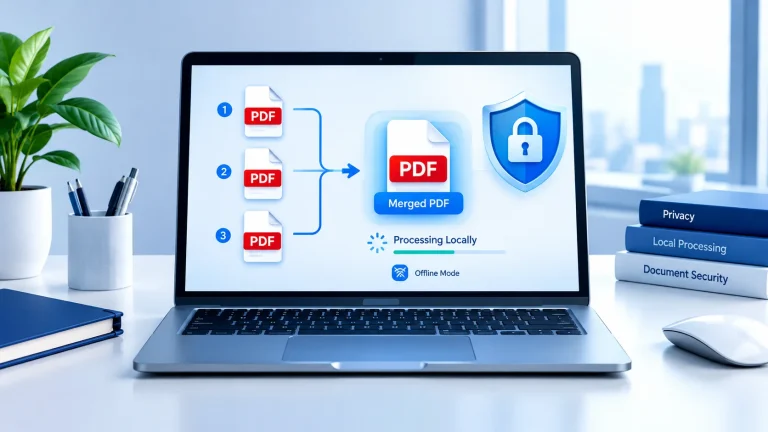
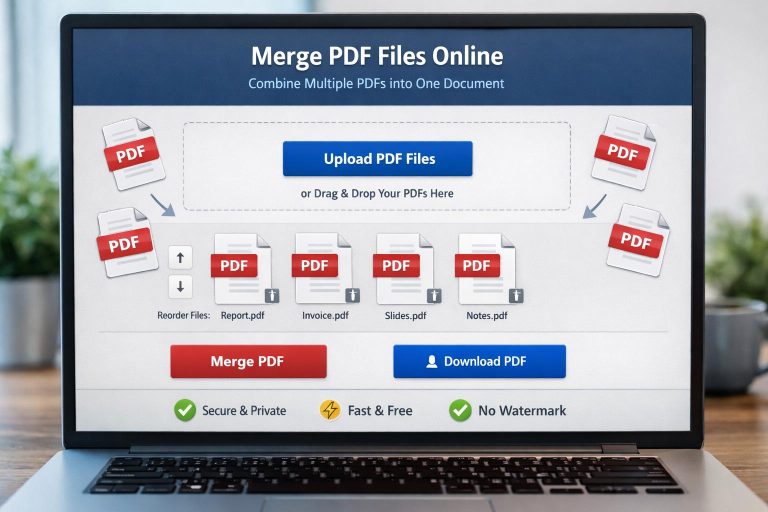
Merge PDF Free Comparison: Best Tools in 2026
If you need to combine several PDF files into one document, a free PDF merger can save you time without requiring paid software. The best option depends on file-size limits, privacy, page ordering, and whether you need to merge documents directly in your browser. This merge PDF free comparison explains how to choose a suitable tool and avoid common problems when combining files.
Table of Contents
What Is a Free PDF Merger?
The free PDF merger is a program designed to merge several PDF files into a single file. You can have one organized file with all of the necessary pages rather than sending multiple attachments.
For instance, one student may have a PDF file containing lecture notes and assignment instructions and reading they are required to read. A freelancer might combine an invoice, a project report, and supporting documents before sending them to a client.
You can reorder files, preview pages, delete documents, or merge PDFs, depending on the tool, without installing anything else.
Merge PDF Free Comparison: What Matters Most
Not every free PDF merger offers the same features. Some focus on simplicity, while others provide more control over page arrangement and document management.
Compare these factors before choosing a tool.
| Feature | What to check | Why it matters |
|---|---|---|
| Price | Is merging genuinely free? | Avoid unexpected payment requirements. |
| File limits | Maximum file size and number of files | Large projects may exceed free limits. |
| Page ordering | Can you rearrange files? | Keeps reports and chapters in the correct sequence. |
| Privacy | How are uploaded files handled? | Matters when documents contain personal or business information. |
| Output quality | Are text and images preserved? | Helps maintain document readability. |
| Ease of use | Does it work in your browser? | Reduces setup time. |
| Extra features | Can you compress, split, or organize PDFs? | May reduce the need for additional tools. |
A useful comparison tip: Test each shortlisted tool with the same sample documents. Include one text-heavy PDF, one containing images, and one with multiple pages. This makes it easier to notice differences in output quality, file handling, and workflow.
Free PDF Merging Tools Compared
Several established tools offer PDF merging options. Their free features, usage limits, and privacy arrangements may change, so check their current terms before uploading documents.
1. CalcuHive Merge PDF
CalcuHive provides an online tools platform for people who want practical utilities without a complicated setup.
Visit the CalcuHive Merge PDF tool to locate the PDF merging feature. Before using it for an important project, check the available file-size limits, supported file types, and any restrictions on free usage.
Best for: Users who prefer an accessible online workflow and want to explore PDF utilities alongside other browser-based tools.
2. Adobe Acrobat Online
Adobe Acrobat Online offers web-based PDF utilities, including a PDF merging feature. Its interface may suit users who already work with PDF documents regularly.
Check which functions are available without a paid subscription and whether your intended task requires signing in.
Best for: People familiar with Adobe’s PDF ecosystem.
Website: https://www.adobe.com/acrobat/online/merge-pdf.html
3. Smallpdf
Smallpdf provides online PDF tools, including a merger that lets users combine documents through a browser-based interface.
Review its current free-use restrictions, account requirements, and document-handling policies before starting a large task.
Best for: Users who want an easy-to-follow online PDF workflow.
4. iLovePDF
iLovePDF offers PDF merging and several related document-management utilities. Depending on the task, you may also find tools for compressing, splitting, and converting PDFs.
Its free plan may have restrictions, so check the current terms if you need to process many or particularly large files.
Best for: People who need several PDF utilities in one place.
5. Offline PDF Software
Offline PDF software can be a practical alternative when documents contain confidential information or you have limited internet access.
For example, PDFsam Basic offers desktop PDF tools, including merging. Because processing can take place locally, an offline workflow may reduce the need to upload document contents to an online service.
Best for: Users who prefer desktop software and want local document processing.
Quick Comparison Table
| Tool | Main advantage | What to verify |
|---|---|---|
| CalcuHive | Online utility workflow | Current free limits and privacy terms |
| Adobe Acrobat Online | Familiar PDF ecosystem | Sign-in and free-feature restrictions |
| Smallpdf | Simple browser-based process | Usage limits and account requirements |
| iLovePDF | Multiple PDF utilities | Free-plan restrictions |
| PDFsam Basic | Desktop-based processing | Installation and supported features |
This is a feature-oriented comparison, not a laboratory test or a verified ranking of performance. Actual limits and available features can change, so select a tool based on your specific requirements rather than its name alone.
How to Merge PDF Files for Free
Most online PDF merging tools follow a similar process. The exact button names and available options may differ.
Step 1: Prepare Your PDF Files
Place the documents you want to combine in one folder. Give each file a descriptive name, such as 01-Cover.pdf, 02-Report.pdf, and 03-Appendix.pdf.
This simple naming system makes the intended order easier to remember.
Step 2: Open a PDF Merger
Choose your preferred online tool or desktop application. If you use an online service, confirm that it supports your file sizes and that its privacy terms are suitable for your documents.
Step 3: Upload or Add Documents
Select the PDF files you want to combine. Some tools support drag-and-drop uploads, while others let you browse your device.
Step 4: Arrange the Correct Order
Check the document sequence before merging. A report with its appendix placed before the introduction can look unprofessional, even if every page is present.
Step 5: Merge and Download
Select the merge option and save the resulting PDF. Give the new file a clear name that identifies its contents.
Step 6: Check the Finished Document
Open the merged file and confirm that:
- Every expected page is present.
- Pages appear in the correct order.
- Text remains readable.
- Images and tables display correctly.
- Important links or form fields still work as expected.
Never assume that a successful download guarantees a perfect result.
How to Choose the Right PDF Merger
The best tool depends on what you are combining and how often you need to do it.
For Everyday Documents
If you are combining school notes, personal reading materials, or non-sensitive work documents, a straightforward online merger may be sufficient.
Prioritize a clear interface, convenient downloads, and reasonable file limits.
For Large PDF Projects
If your documents contain hundreds of pages or large images, check file-size limits and processing restrictions first. You may need to compress individual files before merging them.
Remember that compression can affect image quality, so inspect the final document carefully.
For Confidential Documents
Avoid uploading sensitive contracts, identity documents, financial statements, or customer records to an unfamiliar website.
Look for clear information about file retention, deletion, encryption, and data handling. If the documents are highly confidential, consider a reputable offline application instead.
For Frequent PDF Work
If you regularly merge, split, compress, and convert files, compare the complete workflow rather than focusing on merging alone. A tool that handles several tasks well may save more time than one that performs only a single operation.
Common PDF Merging Problems
The Merged PDF Is Too Large
Image-heavy documents can produce a large output file. Consider compressing the source PDFs before merging them, while checking that important text and images remain clear.
Pages Appear in the Wrong Order
Arrange the files before merging and verify the first and last pages afterward. Numbered filenames can help prevent mistakes.
The Tool Rejects a File
The file may exceed the service’s size limit, be damaged, or use a format that the tool does not support. Open the PDF separately to check whether it works, then review the tool’s requirements.
Formatting or Interactive Elements Change
Some PDF features may not behave identically after processing. If your document contains signatures, fillable forms, bookmarks, or interactive links, test the output before distributing it.
You Are Unsure Whether Your Files Are Private
Read the service’s privacy policy rather than assuming every online tool handles documents the same way. Avoid uploading confidential material unless the service meets your organization’s security requirements.

Frequently Asked Questions
1. What is the best free tool to merge PDF files?
The best option depends on your file sizes, privacy requirements, and desired features. Compare CalcuHive, Adobe Acrobat Online, Smallpdf, iLovePDF, and offline software before choosing.
2. Can I merge PDF files without paying?
Yes. Several online services and desktop applications offer free PDF merging. However, some impose limits on file sizes, usage frequency, or additional features.
3. Is it safe to merge PDF files online?
It can be suitable for ordinary documents when you choose a trustworthy service and understand its privacy practices. For confidential files, check retention and deletion policies or use reputable offline software.
4. Can I merge PDF files without installing software?
Yes. Browser-based PDF mergers let you combine files without installing a desktop application. You generally need an internet connection and a compatible browser.
5. Will merging PDFs reduce their quality?
Merging alone does not necessarily reduce quality. However, some processing workflows can alter images, fonts, or interactive elements, so inspect the finished file before sharing it.
6. Can I rearrange pages after merging PDFs?
Some PDF editors let you reorder, rotate, or delete pages after merging. If your merger lacks these options, you may need a separate PDF page-organizing tool.
Final Thoughts
Choosing a free PDF merger is easier when you compare practical features instead of relying on promotional claims. Check file limits, document privacy, page ordering, and output quality before committing to a tool.
For occasional tasks, an online merger may offer the simplest workflow. For sensitive documents or repeated work, offline software may provide a better fit. Whichever option you choose, review the finished PDF to make sure every page is present and readable.