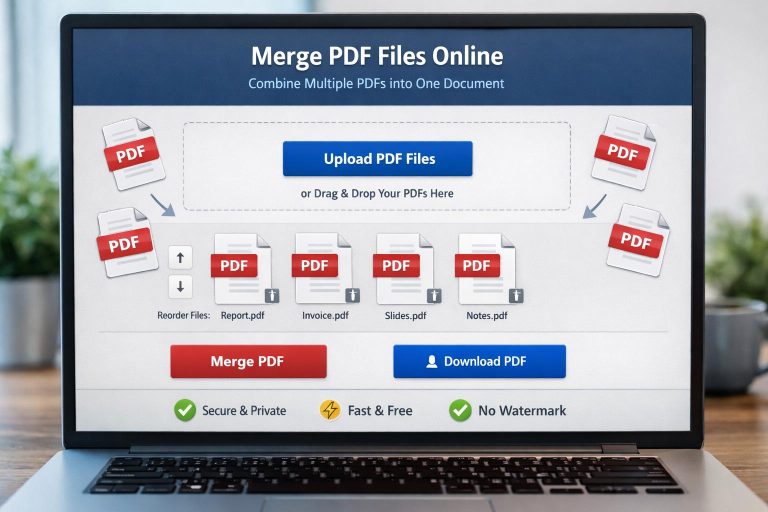
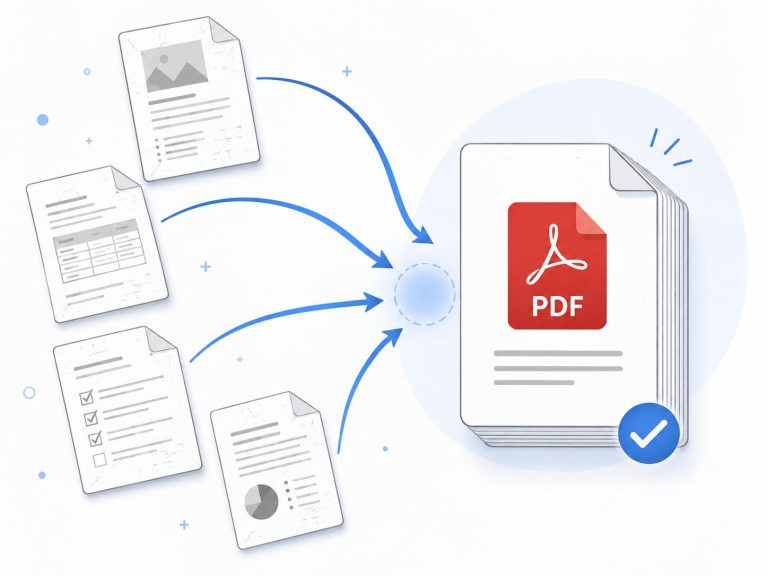
Merge PDF Privacy: How to Combine PDF Files Safely
Combining PDF files is convenient, but what happens to your documents after you upload them to an online tool? If you are merging contracts, financial statements, business reports, or personal records, privacy should be part of your decision.
The safest approach is to use a trusted PDF merger that clearly explains how files are handled, whether documents leave your device, and when uploaded files are deleted. You should also check the tool’s privacy policy before combining sensitive information.
In this guide, you will learn how to merge PDF privacy files with privacy in mind, identify potential security risks, and choose a suitable PDF merging method. Whether you are working with personal paperwork or business documents, these practical steps can help you protect your information while keeping your files organized.
Table of Contents
What Does Merge PDF Privacy Mean?
Merge PDF Privacy refers to the steps you take to secure your documents and information while merging several PDFs into one.
Your files can be merged to a remote server, or your browser may process your PDFs. These methods have different privacy implications.
If you want to work with 3 documents—a signed contract, invoice, and identification—for instance. If such files are uploaded to the provider’s server through an online tool, the provider’s storage practices, processing of the files, and deletion of the files are important.
- The privacy-conscious PDF merger program should clarify:
- The type of processing of the files, either locally or to a server.
- The protection of documents in transferring and processing.
- Whether or not files are temporarily retained.
- If files are deleted from the upload folder.
- The sharing of documents or information related to documents with third parties.
- The data that the website collects from visitors and its use of the tools.
When creating a website, it’s important to have a privacy policy point, but it does not automatically prove that a service is secure. Look for clear, specific explanations of how the tool works.
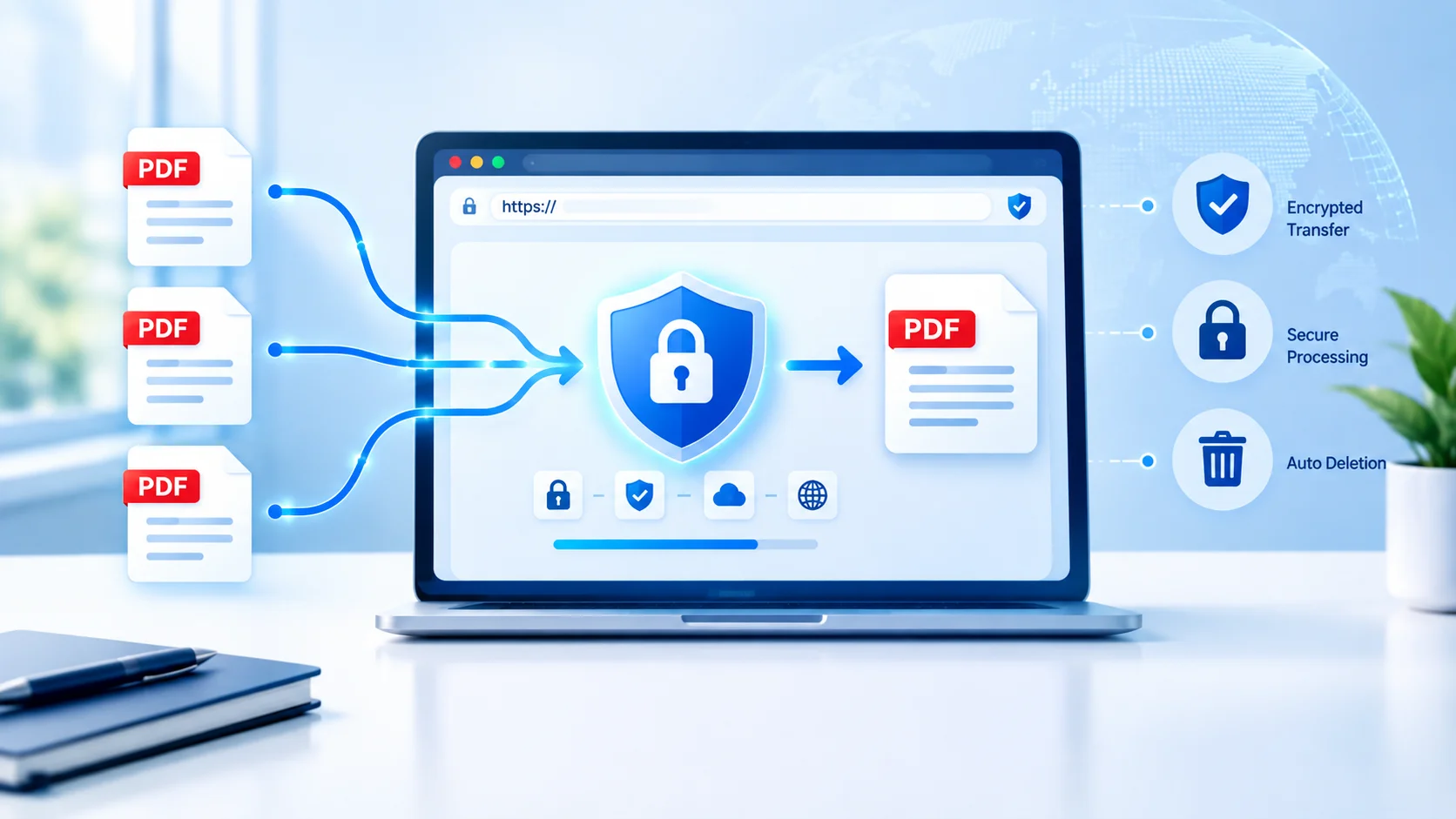
How to Merge PDF Files Without Compromising Privacy
You can combine PDF files while reducing unnecessary exposure of your information. The right method depends on the sensitivity of your documents and the features available in your chosen tool.
Step 1: Choose a PDF Merger That Explains Its Privacy Practices
Check the privacy details of the tool before uploading anything. Search for information on file processing, temporary storage, deletion times, and data sharing.
If the provider indicates that it will process the documents in the browser, see if this is true for the merge. Some features on a website can be processed locally, while other ones can be processed on the servers of the website.
If they’re classified confidential, use an offline PDF tool or a browser-based tool that truly works offline. While local processing can minimize running code on a third-party server, they don’t completely remove all risk factors on your device.
Step 2: Prepare Your PDF Documents
Collect the files you want to combine and check that each document is correct.
Before merging, consider the following:
- Remove pages that contain unnecessary personal or confidential information.
- Check whether hidden information or document metadata could reveal sensitive details.
- Confirm that you have permission to process and combine the documents.
- Make a backup of important original files.
- Use descriptive filenames that do not expose confidential details unnecessarily.
For instance, a filename such as Medical-Records-Patient-Name.pdf may reveal more than you intend. A neutral filename can reduce unnecessary disclosure when files appear in downloads or shared folders.
Step 3: Upload Files Only When Necessary
If you choose an online PDF merger, select the files you need and follow the tool’s instructions.
Before proceeding, confirm whether uploading is required. If the tool works locally, your files may remain on your device. If it uses server-side processing, your documents will generally need to be transferred to the provider.
Avoid uploading highly sensitive documents to an unfamiliar website simply because it offers a free service. If you cannot establish how the provider handles confidential files, choose a more transparent alternative.
Step 4: Arrange the Pages in the Correct Order
Once your PDFs are loaded, arrange them in the order you want them to appear.
A typical document might follow this sequence:
- Cover page or introduction.
- Main report or agreement.
- Supporting documents.
- Appendices or attachments.
Check the order carefully before merging. This is particularly important for legal agreements, business proposals, applications, and financial reports.
Step 5: Merge and Download the Combined PDF
Use the tool’s merge function to combine the selected files. When processing finishes, download the resulting document to a location you control.
Open the merged PDF and review its contents. Check page order, formatting, missing pages, and readability.
If your document contains confidential information, save it in an appropriately protected folder. When sharing it, use a trusted delivery method and give access only to the intended recipients.
Step 6: Check Temporary Files and Clean Up
After downloading your combined PDF, consider what happens to the original files and the merged copy.
For an online service, follow its published deletion instructions. Some providers automatically delete uploads after a stated period, while others offer manual deletion or have different retention practices. Do not assume that files disappear immediately when you close the browser tab.
On your own device, remove unnecessary duplicate downloads and temporary copies. Remember that deleting a file from a normal folder may not remove every backup or synchronized copy.
Online PDF Merger vs. Offline PDF Software
Choosing the right merging method is one of the most important decisions for merge-pdf-privacy. Neither an online nor an offline tool is automatically the best option for every situation.
| Feature | Online PDF merger | Offline PDF software |
|---|---|---|
| Convenience | Usually easy to access through a browser | May require installation |
| Internet connection | Usually required | Often not required for merging |
| File handling | May involve uploading files | Can keep processing on your device |
| Privacy considerations | Depends on the provider and processing method | Depends on the software and device security |
| Updates and maintenance | Managed by the service provider | Often requires user updates |
| Best suited for | Routine documents and quick tasks | Sensitive documents when processing stays local |
A browser-based PDF merger that processes files locally may offer both convenience and reduced exposure to external servers. However, verify the actual processing method rather than relying on the word “online” or “private.”
For highly confidential documents, an established offline application may be a better choice, particularly when your organisation requires documents to remain within a controlled environment.
Common PDF Privacy Risks You Should Know
Understanding common risks makes it easier to decide which tool is appropriate for your documents.
1. Unclear File Retention Policies
Some online tools explain how long they retain uploaded documents, while others provide limited detail.
If the deletion policy is unclear, you may not know how long your files remain on the provider’s systems. For sensitive documents, choose a service that explains its retention practices in plain language.
2. Unnecessary Data Collection
A PDF website may collect information beyond the documents needed for merging. Depending on the service, this could include usage information, browser details, IP addresses, or analytics data.
Review the privacy policy to understand what information is collected and why. Avoid assuming that a free tool collects no data.
3. Unencrypted Transfers
When files travel between your device and a remote server, secure transport helps protect them from interception.
Look for HTTPS in the website address. However, HTTPS protects the connection; it does not prove that the provider stores files securely or deletes them as promised.
4. Accidental Document Sharing
A merged PDF can contain information that you did not intend to distribute. Combining several files may bring personal details, internal notes, or confidential attachments into one document.
Always inspect the final PDF before sharing it. Confirm that the recipient is correct and that the document contains only information they should receive.
5. Metadata and Hidden Information
PDFs can contain metadata, such as author names, document titles, creation details, and software information. Depending on how the file was created, additional information may also be embedded.
Before sharing a sensitive PDF, inspect its document properties and remove unnecessary metadata using a trusted application where appropriate. Redacting visible text alone may not remove the underlying information.
How to Choose a Privacy-Friendly PDF Merger
When comparing PDF merging tools, use the following checklist to evaluate their suitability.
PDF privacy checklist
The privacy policy comprehensively describes file processing. The service indicates if files are uploaded or processed locally. The method of file retention and deletion are explained. The website communicates via secure connection (HTTPS). The tool gives transparent information on third party sharing. The service meets my documents’ sensitivity.
0 of 6 checks reviewed
This list of items is not a security certification. Claims by the provider should be approached with a critical eye, taking into account the provider’s documentation and your requirements.
If it’s company documents, also see if the tool complies with your organization’s data protection policies. If you’re in a certain position or specific job, there might be contractual terms or legal requirements that apply.
How to Protect Sensitive PDFs Before and After Merging
A trustworthy merging tool is only one part of document security. Your device, storage location, and sharing habits matter too.
Use Password Protection When Appropriate
If the final PDF contains confidential information, consider password protection or encryption using a trusted PDF application.
Choose a strong, unique password and share it separately from the document when practical. Keep in mind that PDF password features vary, and some permissions restrictions can be removed by certain applications.
Keep Your Software Updated
Use current versions of your browser, operating system, and PDF software. Updates can address security vulnerabilities and improve compatibility.
Avoid installing unknown browser extensions or downloading software from suspicious websites simply to merge a few files.
Store Documents Securely
Save merged documents in a location with appropriate access controls. If you use cloud storage, review sharing permissions and check whether links are public or restricted to specific people.
For business environments, follow your organisation’s rules for document retention, access, and deletion.
Verify the Final Document
Before sending the PDF, open it and review every page. Check that the document does not include extra pages, unintended personal information, or confidential attachments.
If you need to remove sensitive information, use a genuine redaction feature rather than simply drawing a black shape over the text. Improper redaction can leave the original information recoverable.
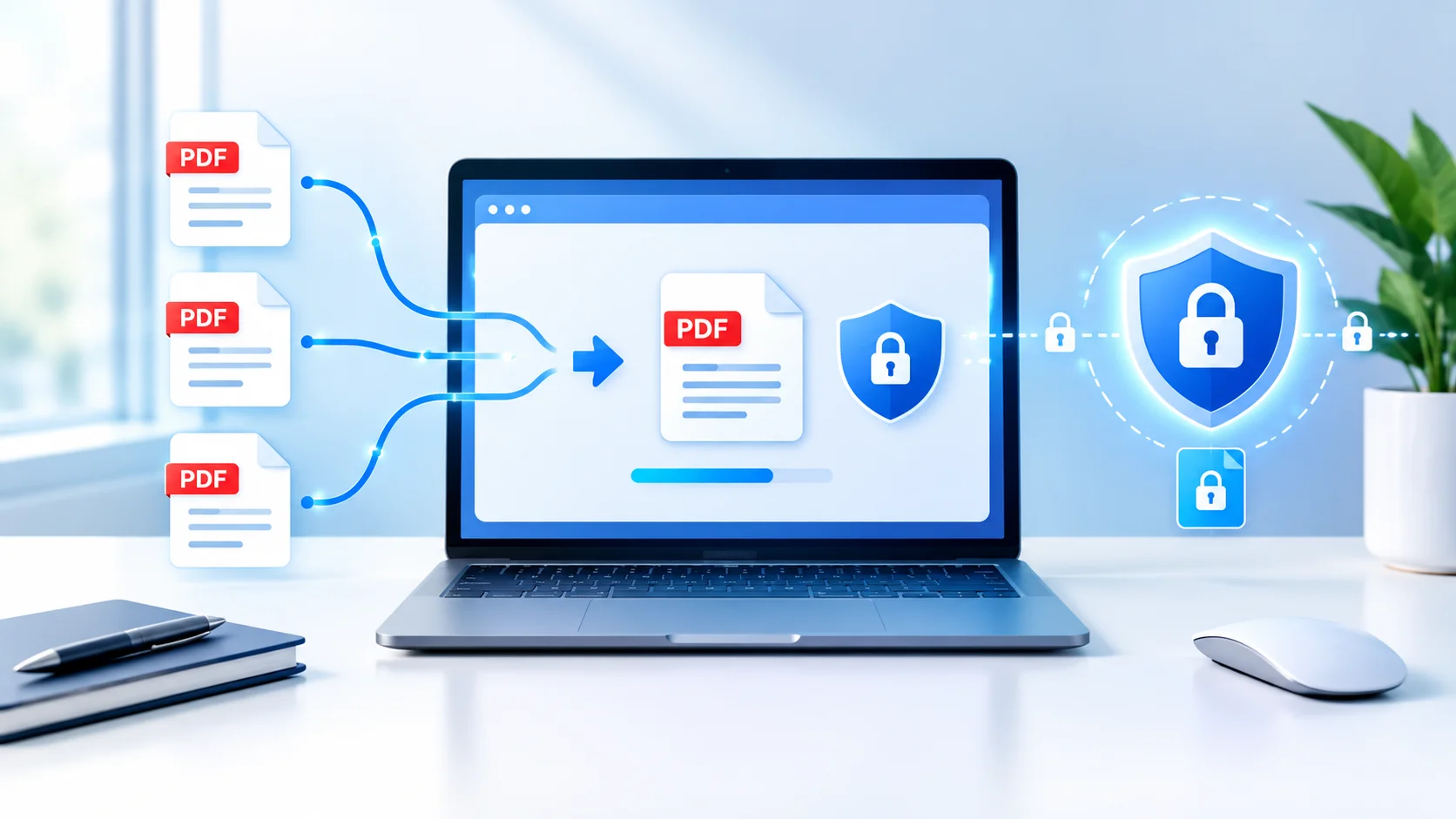
Example: Merging Business Documents Safely
Suppose that a freelancer is creating a project handover for a client. The handover consists of a project report, invoice and delivery checklist.
The freelancer goes through all of these files first and takes out any information that is not related to the topic. They then select a PDF merger that they know has a well-defined process for processing and a clearly stated privacy policy. Where the files include confidential client data, they might instead employ software on a stand alone basis that works with the documents locally.
The freelancer merges the PDFs, verifies that the pages are in the correct sequence, examines the document properties, and saves the resulting PDFs in a safe folder. Before sending, they verify that it is accessible to the proper client.
This simple process will help to minimize the exposure and avoid making a daily task difficult. This can also apply to students doing assignments, employees writing reports or a family getting organised for paperwork.
Frequently Asked Questions About Merge PDF Privacy
Is it safe to merge PDF files online?
It can be safe for routine documents when you choose a reputable service with transparent privacy practices. For sensitive files, check whether documents are uploaded, how they are protected, and when they are deleted. Local processing or trusted offline software may be preferable for confidential information.
Can an online PDF merger read my documents?
If files are uploaded to a provider’s server, the service may technically be able to access their contents, depending on its architecture and encryption methods. Browser-based local processing can reduce server exposure when implemented correctly. Check the provider’s documentation instead of assuming that all online tools handle files in the same way.
Does HTTPS guarantee that my PDF files are private?
No. HTTPS helps protect data travelling between your browser and the website. It does not guarantee secure server storage, immediate deletion, or freedom from unnecessary data collection.
Are free PDF merging tools safe to use?
Some free tools may be suitable, but price alone does not establish whether a service is safe. Review its privacy policy, processing method, retention practices, and reputation before uploading documents. For highly confidential files, consider an offline option.
Do PDF merging websites keep uploaded files?
Practices vary by provider. Some services state that uploads are deleted automatically after a specified period, while others may follow different retention policies. Check the service’s current documentation and deletion options before uploading confidential documents.
How can I merge PDF files without uploading them?
Use an offline PDF application or a browser-based merger that genuinely performs the merging locally. If local processing is important, verify that the files are not sent to a remote server during the operation. You can also disconnect from the internet when using suitable offline software, provided the application does not require an online service to complete the task.
Should I password-protect a merged PDF?
Consider password protection when the document contains confidential or personal information. Use a trusted application with appropriate encryption and share the password securely. Password protection complements good file handling but does not replace careful storage and sharing practices.
Conclusion
Protecting your documents while combining PDF files starts with choosing the right tool and understanding how it handles your information. A clear privacy policy, transparent file retention practices, secure connections, and careful document handling can help you make a more informed decision.
For everyday documents, a reputable online PDF merger may be convenient. For confidential contracts, financial records, or personal information, consider offline software or a verified local-processing tool that minimises exposure to external servers.
Before sharing your merged PDF, review its contents, check for unnecessary metadata, and confirm that the intended recipient has appropriate access.
Remember: convenience matters, but your documents deserve protection too. Make privacy part of your PDF workflow every time you combine files.