How to Merge PDF Without Software (2026 Guide)
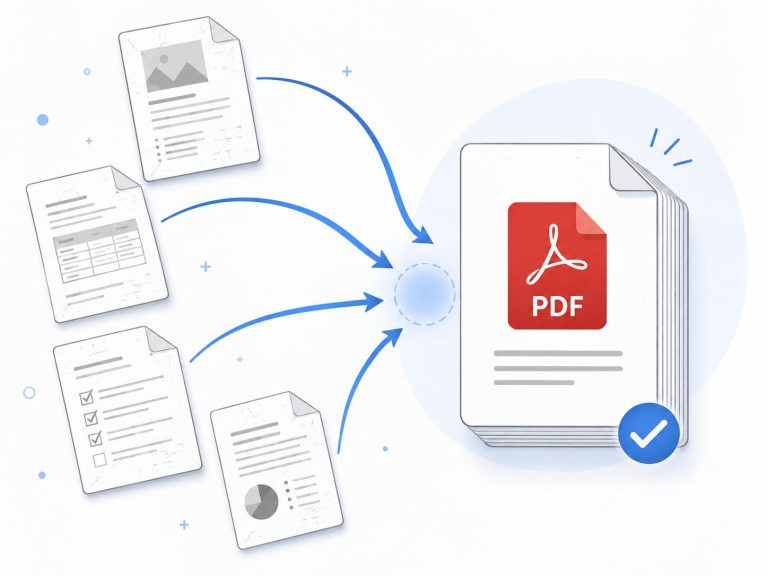
Merging PDF files without installing software is simple. You can use a free online PDF merger to upload multiple documents, arrange them in the correct order, and download a single combined PDF. This method works in most modern browsers on computers, tablets, and smartphones.
Whether you need to combine work documents, invoices, study notes, or scanned pages, an online tool can save you time and storage space. Here is how to do it safely and efficiently.
Table of Contents
How to Merge PDF Without Software
The easiest way to merge PDF files without software is to use a browser-based PDF merging tool. You do not need to install a desktop application or learn complicated editing features.
Follow these basic steps:
- Open an online PDF merger in your web browser.
- Upload the PDF files you want to combine.
- Arrange the files in your preferred order.
- Select the merge or combine option.
- Download the resulting PDF and check the pages.
For example, imagine you have three separate files containing a cover letter, résumé, and certificates. Instead of sending three attachments, you can combine them into one organized PDF for easier sharing.
Try the CalcuHive Merge PDF tool if you want to combine documents directly in your browser. Check the tool’s current file limits and privacy information before uploading sensitive material.

Why Merge PDFs Online?
Online PDF merging is useful when you need a quick result without installing additional software. It can also make document management easier for students, freelancers, office workers, and small business owners.
No installation required
You can open an online PDF merger through a supported browser. There is no need to download a separate program, run an installer, or reserve extra storage space for a desktop application.
Combine documents from different sources.
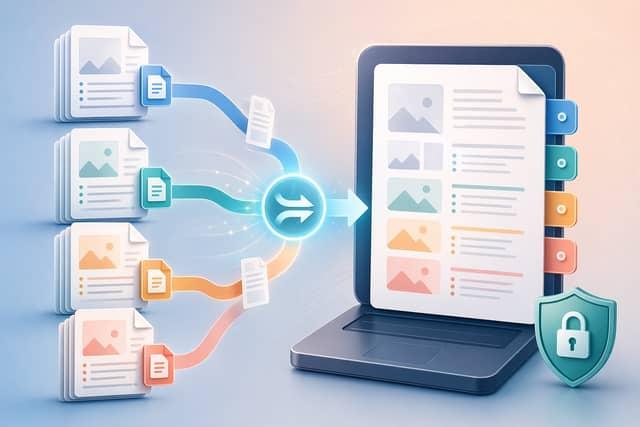
PDF files often come from different people, websites, scanners, and office applications. Merging them creates one document that is easier to review, store, print, or send.
Save time when organizing documents.
Consider a freelancer preparing a client handover. The project might include a proposal, invoice, agreement, and final report. Combining these files into one PDF creates a more convenient package for the client.
Works across different devices
A browser-based tool may work on Windows, macOS, Android, and iOS, depending on its compatibility. You can often complete the process without using the same computer on which the original documents were created.
How to Combine PDF Files Step by Step
If you are new to PDF tools, use the following process to avoid mistakes.
Step 1: Prepare your PDF files.
Find the documents you want to merge and place them in one folder if you are using a computer. Give each file a recognizable name, such as 01-Cover.pdf, 02-Report.pdf, and 03-Appendix.pdf.
Clear file names make it easier to identify the correct documents before uploading them.
Step 2: Open a free online PDF merger.
Visit CalcuHive Merge PDF and review the available options. Confirm that the tool supports your file sizes and the number of documents you want to combine.
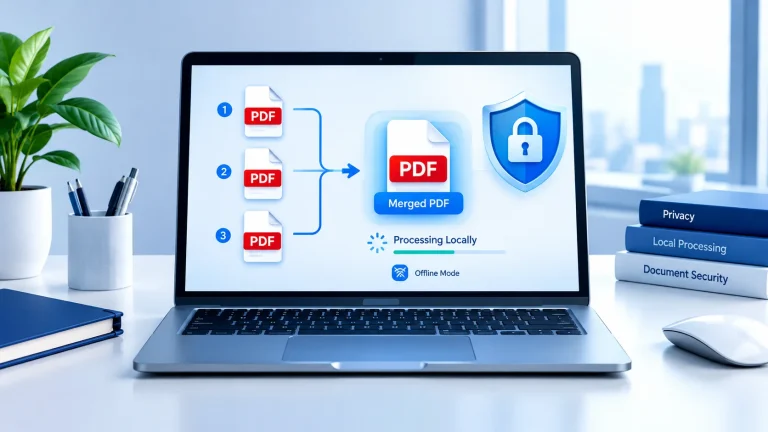
If the tool processes files in your browser, you may be able to merge documents without sending them to a remote server. However, you should verify how the specific tool handles files rather than assuming that every online merger works this way.
Step 3: Upload and arrange the documents
Select your PDF files and add them to the merging interface. If the tool supports drag-and-drop sorting, move the files until they appear in the correct sequence.
Pay particular attention to documents that contain numbered sections, signatures, or appendices. The order of the uploaded files can affect how the final document reads.
Step 4: Merge the PDFs
Choose the merge option and wait for the process to finish. Processing time depends on the number of files, their sizes, your device, and the tool’s processing method.
If the operation fails, try smaller batches or check whether one of the files is damaged or password-protected.
Step 5: Download and inspect the final document.
Save the combined PDF to your device. Open it and check the first page, last page, page sequence, orientation, and readability.
Do not assume the task is complete simply because a download succeeded. A quick inspection can reveal missing pages, duplicated sections, or an incorrect document order before you share the file.
Is It Safe to Merge PDFs Online?
Online PDF merging can be convenient, but privacy depends on the tool and how it processes uploaded documents. Some services upload files to remote servers, while others may process documents locally in your browser.
Before uploading a file, consider the following precautions:
- Read the provider’s privacy policy and file-retention terms.
- Check whether files are uploaded to a server or processed locally.
- Avoid uploading confidential contracts, identity documents, bank statements, or medical records to an unverified service.
- Use a trusted device and a secure internet connection.
- Delete downloaded copies you no longer need, especially on shared devices.
A padlock icon or HTTPS connection helps protect data transmitted between your browser and a website, but it does not independently prove that uploaded files are stored securely or deleted promptly.
For highly confidential documents, an established offline PDF application may be a better choice than an unfamiliar online service.
Common PDF Merging Problems
Even a simple PDF merger can encounter problems. These are some common issues and their practical solutions.
| Problem | Possible solution |
|---|---|
| A file will not upload. | Check the file size, format, and internet connection. |
| The merge process fails. | Try merging fewer files at once. |
| Pages appear in the wrong order. | Rearrange the source files before merging. |
| A PDF requests a password. | Use an authorized, unlocked copy if you have permission. |
| The final file is too large. | Compress the PDF after merging, if needed. |
| Text or images look unclear. | Check the original files and avoid unnecessary image compression. |
What if your merged PDF is too large?
Combining several documents can produce a larger file than expected, especially when they contain scanned images. You can reduce the file size with an appropriate compression tool, but aggressive compression may lower image quality.
For another option, explore the CalcuHive Image Compressor if oversized images are contributing to your document’s size. Compressing images separately does not automatically reduce every PDF’s file size, so check the final document afterward.
Tips for Better PDF Results
A few small preparations can make your merged document easier to use.
Arrange documents before uploading.
Decide whether the cover page, contents page, main report, and supporting documents should appear in a particular order. A clear structure helps readers find information quickly.
Check page orientation and formatting.
One PDF may contain portrait pages while another uses landscape orientation. That is not necessarily a problem, but review the combined file to make sure charts, tables, and scanned pages remain readable.
Keep an original copy.
Save the source documents until you have verified the merged PDF. This gives you a way to correct errors without having to recreate the original files.
Use a simple naming system.
Choose a filename that describes the document, such as Project-Report-October-2026.pdf. Avoid vague names like final-new-version-2.pdf “which,” which can become confusing when several versions exist.
A useful extra tip: If your documents must be read in a specific order, write down the intended sequence before uploading them. This is especially helpful when combining dozens of invoices or scanned records because filenames alone may not reflect the correct reading order.
Frequently Asked Questions
1. Can I merge PDF files without installing software?
Yes. You can use a browser-based PDF merger to upload documents, arrange them, combine them, and download the result. Some tools process files locally, while others use remote servers.
2. How to merge PDF without software for free?
Choose an online PDF merger that offers a free merging feature. Upload your files, arrange their order, select the merge option, and download the combined document. Check any file-size or usage restrictions first.
3. Can I combine multiple PDF files into one document?
Yes. Many PDF merging tools support combining several files into a single document. The maximum number of files and permitted file sizes depend on the service you choose.
4. Can I merge PDF files on my phone?
Yes. Many browser-based PDF tools work on smartphones and tablets. Open the tool in your mobile browser, select your PDF files, merge them, and save the resulting document.
5. Is it safe to merge PDF files online?
It depends on the provider and its file-handling practices. Review its privacy policy, storage practices, and deletion terms. For sensitive documents, consider an offline application or a verified tool that processes files locally.
6. Will merging PDF files reduce their quality?
Merging PDFs generally combines their pages without intentionally reducing their quality. However, the result can depend on the tool and its processing settings. Compression or image conversion may affect quality, so inspect the final document before sharing it.
Final Thoughts
You do not need to install a desktop application to combine documents. A suitable online PDF merger lets you upload files, arrange their order, and create one document in a few simple steps.
For everyday tasks, start with the CalcuHive Merge PDF tool, review its available features, and inspect the downloaded document before sharing it. If your files contain confidential information, check the tool’s privacy practices first.