

Compress Image Online Free Without Losing Quality
Every image you upload to the web carries a size cost — in load time, storage, and bandwidth. The problem most people run into isn’t finding a way to compress an image; it’s finding one that does it Compress Image Online Free without losing quality, without forcing a signup, and without uploading personal photos to a server they don’t trust.
CalcuHive’s Image Compressor solves all three. It’s a free tool that compresses JPG, PNG, and WebP images online, right from your browser — no account, no watermark, and no visible drop in image quality for normal use.
Why “Free” Online Compressors Aren’t Always Actually Free
A lot of tools that call themselves free still limit you in ways that aren’t obvious until you hit them:
- A cap on how many images you can compress per day
- A maximum file size (often 5–10 MB)
- Locked “Pro” settings behind a paywall
- Forced account creation to download your result
CalcuHive’s Compress Image Online Free has none of these restrictions. You can compress as many images as you need, download immediately, and never create an account.
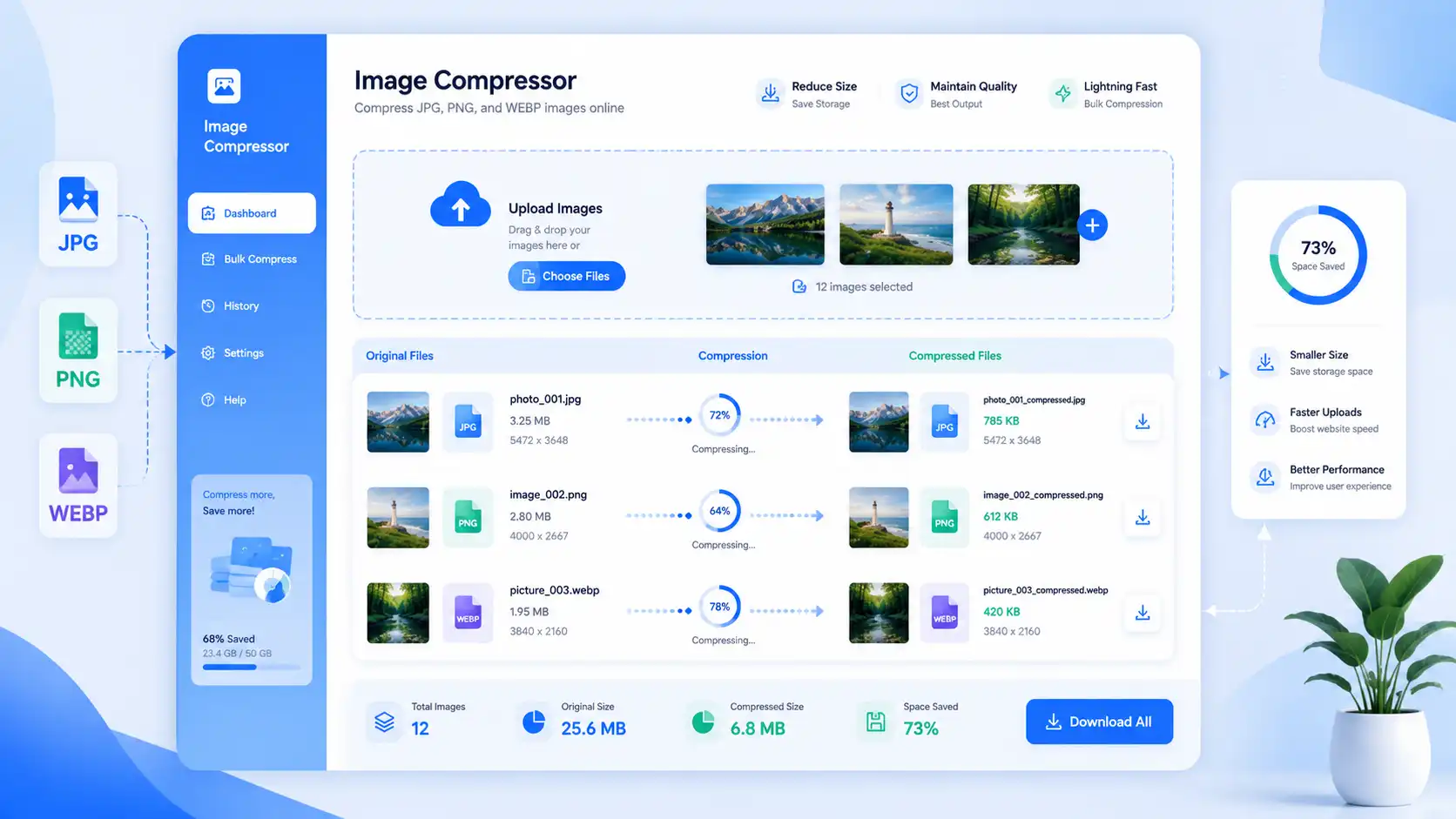
How to Compress Image Online Free Without Losing Quality
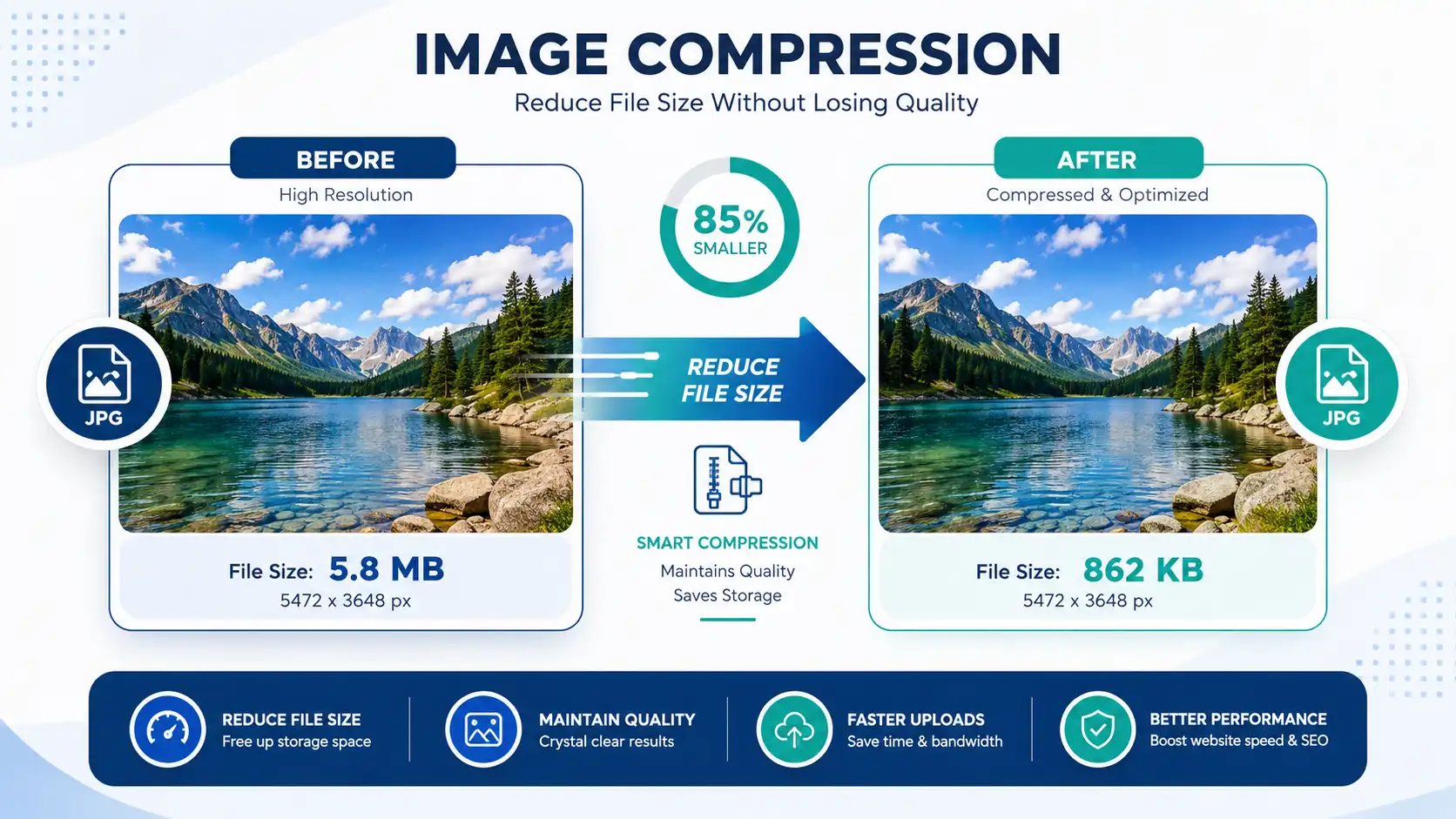
The trick to compressing an image without visible quality loss isn’t avoiding compression — it’s controlling how much and what kind:
- Upload your image (JPG, PNG, or WebP).
- Choose a moderate compression level. Most images can lose 60–80% of their file size before any difference is visible to the human eye. Going further starts to introduce visible artifacts.
- Compare before and after. Use the preview to check the compressed version against the original at full zoom, especially around text, edges, and gradients — the areas where quality loss shows up first.
- Download. If quality still looks perfect, you can usually push the compression a little further and save even more space.
This is the balance most compressors get wrong — they either compress too conservatively (barely shrinking the file) or too aggressively (visible blur and blocky artifacts). CalcuHive’s default settings are tuned to sit right in the quality “sweet spot” most images tolerate well.
Lossy vs. Lossless: What “Without Losing Quality” Actually Means
- Lossless compression removes only redundant data. The image is mathematically identical when decompressed — zero quality loss, but a smaller reduction in file size (usually 10–30%).
- Lossy compression removes data the eye is unlikely to notice. Done carefully, images can shrink by 60–90% with no visible quality loss, even though technically some data is gone.
When people search for “compress image without losing quality,” they almost always mean the second definition — a file that looks identical at normal viewing size, even if it isn’t a pixel-perfect copy. That’s exactly what CalcuHive’s compressor is built to deliver.
JPG, PNG, or WebP — Which Should You Compress To?
| Format | Best For | Compression Behavior |
|---|---|---|
| JPG | Photos, complex images | Compresses very well; ideal for large size reduction |
| PNG | Screenshots, logos, transparency | Lossless by nature; smaller gains, but no quality trade-off |
| WebP | Websites, modern apps | Smallest file size at equal quality; best for page speed |
If you’re compressing for a website, converting to WebP alongside compression typically gets you the smallest possible file without any visible change.
Common Reasons People Compress Images Online
- Speeding up a website — smaller images mean faster page loads and better Core Web Vitals scores, which Google factors into search rankings.
- Meeting upload limits — many forms, job portals, and content management systems reject files above a certain size.
- Saving storage and bandwidth — especially useful for anyone managing large photo libraries or sending images by email.
- Improving mobile experience — compressed images load faster on slower mobile connections, which is where a large share of web traffic now comes from.
Frequently Asked Questions
Will compressing my image online reduce its quality?
At moderate compression levels, the difference is invisible to the human eye. Quality loss only becomes noticeable if you compress far beyond what’s needed, or repeatedly recompress the same file.
Is it really free with no limits?
Yes. CalcuHive’s Image Compressor doesn’t cap the number of images you compress, doesn’t require an account, and doesn’t add a watermark.
Is my image safe when I compress it online?
I Your image is processed only to generate the compressed result and isn’t stored or shared. No login or personal information is required to use the tool.
What’s the best format to compress for a website?
WebP generally gives the smallest file size at the same visual quality, making it the best choice for web use if your platform supports it. JPG is the safest universal fallback.
How much can I compress an image before quality visibly drops?
It varies by image, but most photos can be compressed by 60–80% with no visible quality loss. Highly detailed images or ones with fine gradients may show artifacts sooner.