

Convert PNG to WebP A Simple Guide to Smaller, Faster Images
If your website uses a lot of PNG images, you may have noticed that some pages take longer to load than expected. PNG is an excellent image format because it supports transparency and preserves image quality, but its file sizes can be larger than necessary for many websites.
That is where convert PNG to WebP comes in.
WebP is a modern image format designed to deliver high-quality images with smaller file sizes. Converting PNG images to WebP can help reduce image weight, improve page speed, and make images more suitable for modern websites.
In this guide, we’ll explain what WebP is, why you might convert PNG files, how the conversion works, and what to consider before replacing your original images.
What Is WebP?
This image format, called WebP, was developed by Google to offer efficient image compression with a good visual quality. It is lossy, lossless and transparent.
WebP can often create a much smaller file than traditional PNG files, but still look very similar.
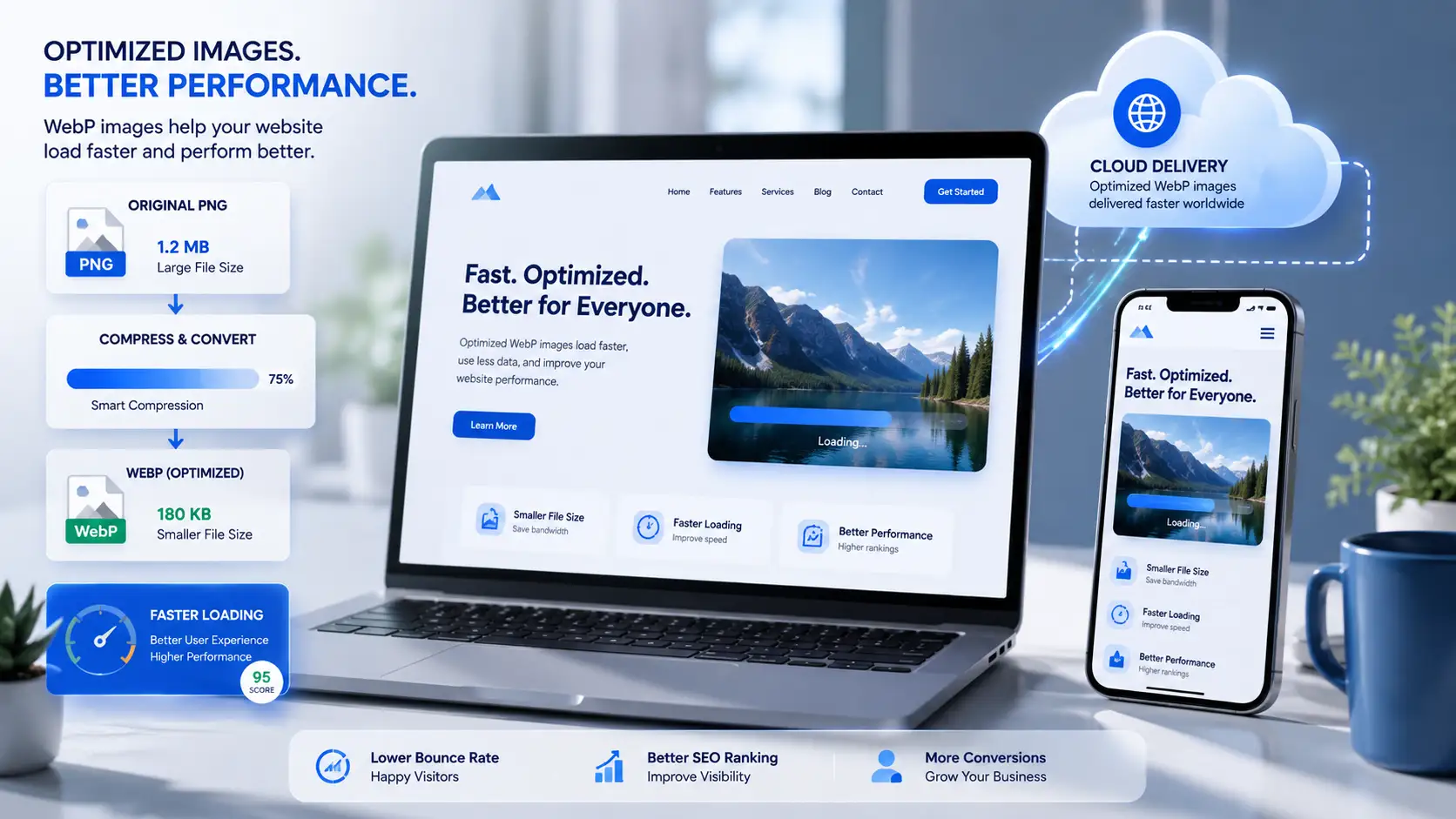
For instance, a picture stored as a PNG file that weighs 500 KB could be converted to a WebP file that is significantly smaller in size. This will vary depending on the image size, transparency, compression and dimensions.
This is why WebP is especially useful for applications with a website, such as for the performance of images..
Why Convert PNG to WebP?
There are several reasons to convert PNG images to WebP.
1. Reduce Image File Size
Large images can increase the amount of data a browser needs to download. Converting PNG to WebP can reduce the file size and make images easier to deliver to visitors.
Smaller files can be especially useful for mobile users who may have slower or limited connections.
2. Improve Website Loading Speed
Images are often responsible for a substantial portion of a webpage’s total size. Reducing image file sizes can contribute to faster page loading.
A faster website can also provide a better user experience because visitors do not have to wait as long for visual content to appear.
3. Maintain Good Image Quality
A common concern about image compression is that smaller files may look noticeably worse. WebP provides different compression options, allowing you to balance file size and image quality.
For many website graphics, icons, screenshots, and transparent images, WebP can provide an effective balance.
4. Support Modern Web Performance
Modern websites increasingly use optimized image formats to improve performance. WebP is supported by modern browsers and is widely used for web images.
Using an efficient format can therefore be part of a broader image optimization strategy.
PNG vs WebP What’s the Difference?
PNG and WebP both have useful characteristics, but they are designed with different priorities.
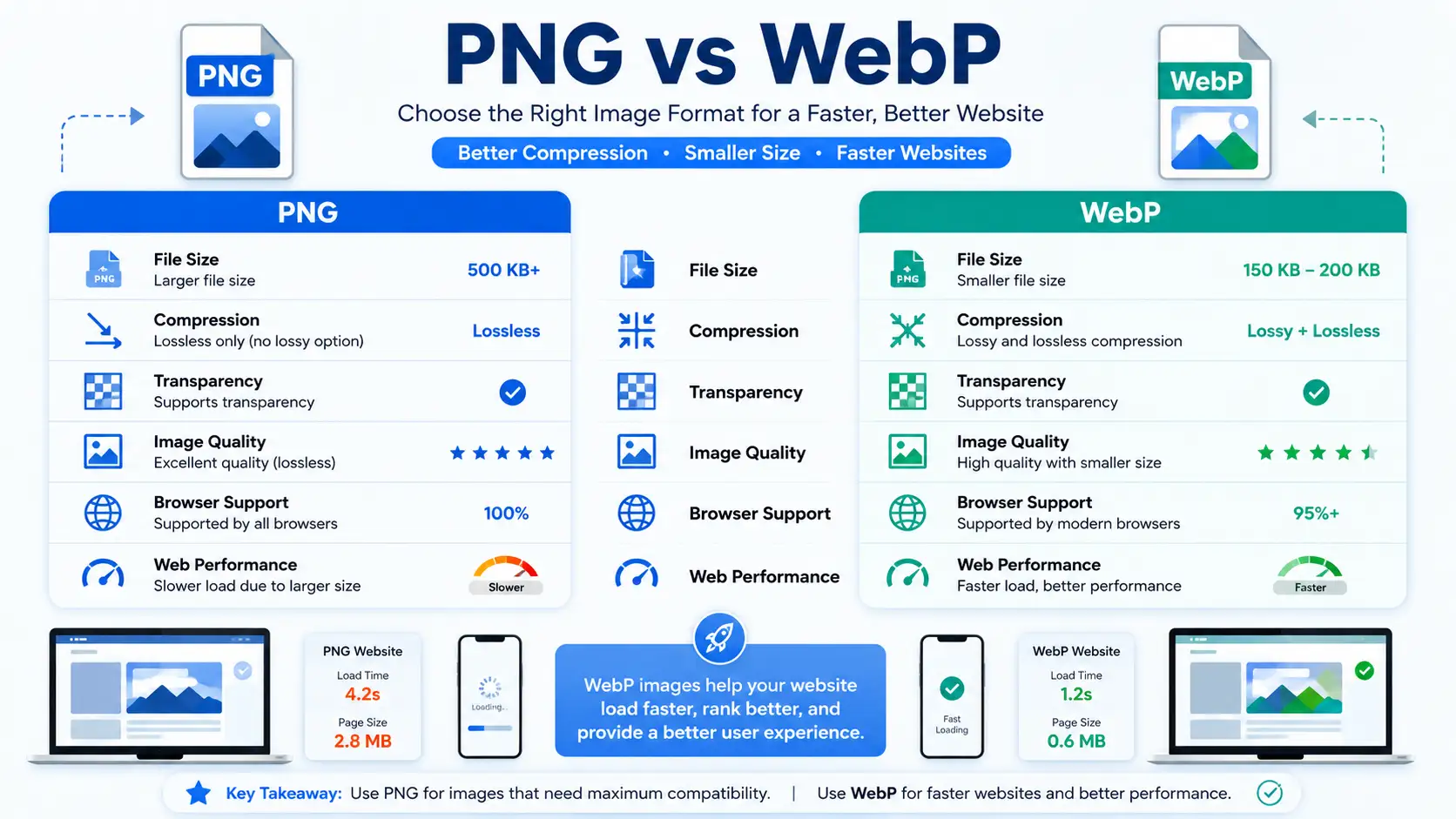
| Feature | PNG | WebP |
|---|---|---|
| Lossless compression | Yes | Yes |
| Lossy compression | No | Yes |
| Transparency | Yes | Yes |
| Generally smaller files | No | Often |
| Designed for web efficiency | Good | Excellent |
| Animation support | No | Yes |
PNG remains useful when you need a lossless image with broad compatibility or when preserving the original file is important.
WebP, on the other hand, is often a strong choice when website performance and file size are priorities.
How to Convert PNG to WebP
The conversion process is usually straightforward.
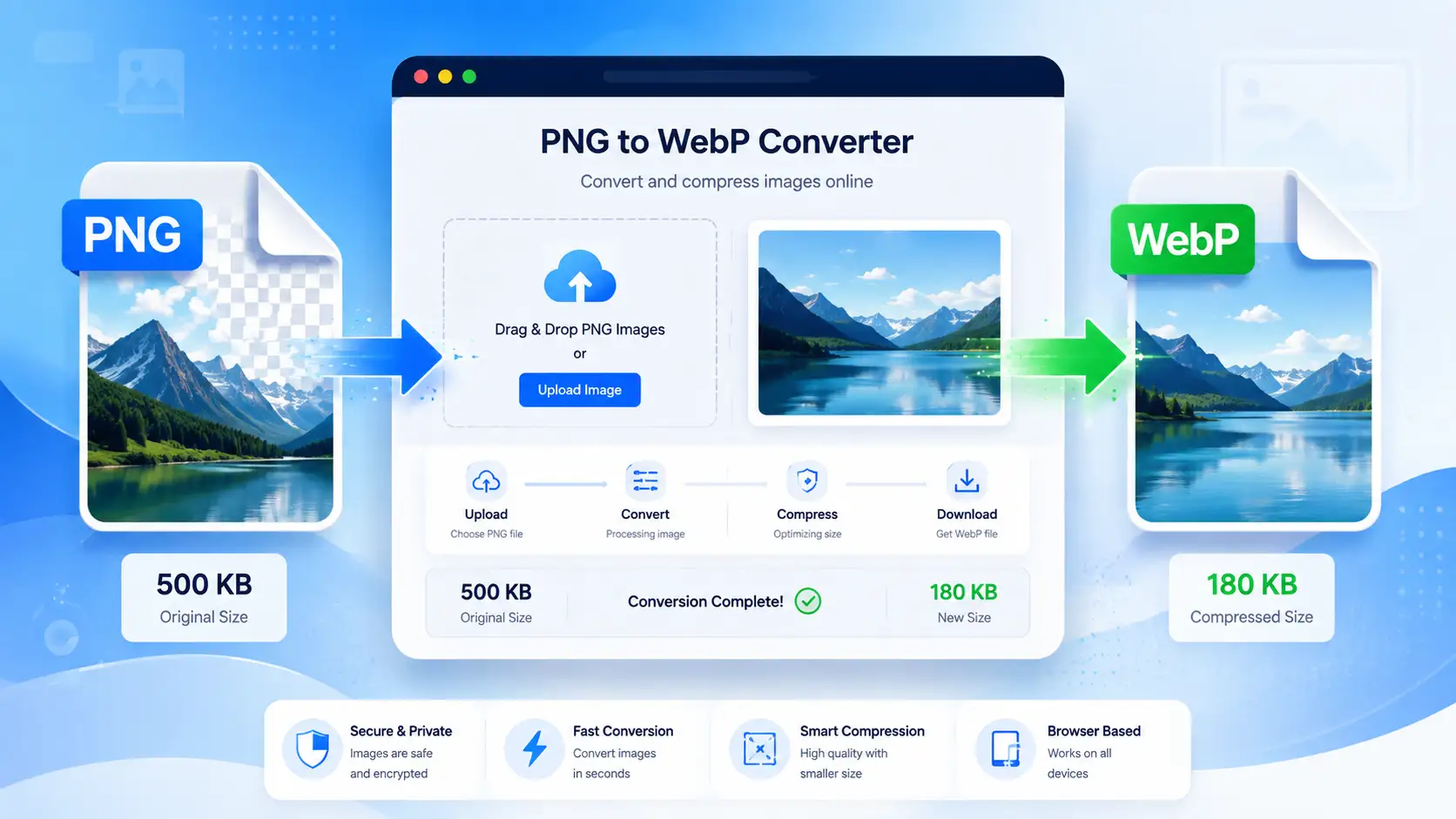
Step 1: Choose Your PNG Image
Start with the PNG image you want to optimize. Make sure you are working with the original or highest-quality version available.
This gives you more flexibility when choosing compression settings.
Step 2: Upload the Image
Use a reliable PNG to WebP converter to upload your image.
For example, CalcuHive provides an online PNG to WEBP tool designed to make image conversion simple without requiring complicated software.
Step 3: Convert the Image
Start the conversion process. The tool processes the PNG and creates a WebP version.
Depending on the tool, you may have options related to compression or image quality.
Step 4: Download the WebP File
Once the conversion is complete, download the new WebP image and compare it with the original PNG.
Check both the visual quality and file size before using it on your website.
When Should You Use WebP?
WebP is a particularly useful choice for websites, blogs, online stores, landing pages, and web applications.
You might consider WebP for:
- Blog featured images
- Website graphics
- Product images
- Screenshots
- Transparent illustrations
- Icons and interface graphics
- Social media images used on websites
- Decorative website elements
If an image does not require the characteristics of another specialized format, WebP can be a practical option.
Can WebP Replace PNG Completely?
Not necessarily.
Although WebP is highly useful, you should not automatically convert every PNG file without checking the result.
Some workflows may still require PNG originals. For example, you may want to preserve a high-quality master file for editing, design work, or future use.
A good approach is to keep your original PNG files safely stored and use optimized WebP versions for your website.
This gives you the benefits of smaller web images without losing your source files.
PNG to WebP for WordPress Websites
If you run a WordPress website, image optimization can make a noticeable difference to your overall performance strategy.
Instead of uploading unnecessarily large PNG images, you can convert suitable images to WebP before adding them to your media library.
You can also use image optimization plugins that automatically generate WebP versions, depending on your website setup.
However, avoid blindly converting every image. Review the output and make sure transparency, dimensions, and visual quality are preserved.
For a smaller website or occasional conversion, an online PNG to WebP converter can be a convenient option.
Does Converting PNG to WebP Reduce Quality?
It can, but it depends on the compression method used.
WebP supports both lossy and lossless compression. Lossless WebP aims to preserve the image data, while lossy WebP removes some information to achieve greater file-size reductions.
For many website images, a properly compressed lossy WebP can look almost identical to the original while being substantially smaller.
The best setting depends on the image.
For example, a simple graphic may tolerate stronger compression, while a detailed screenshot may benefit from higher quality settings.
Always inspect the converted image before publishing it.
Tips for Better WebP Optimization
Simply changing the file extension is not enough. Proper optimization involves choosing suitable dimensions and compression.
Here are some practical tips:
Resize Before Converting
If your website only displays an image at 800 pixels wide, there may be little reason to upload a 3,000-pixel version.
Resize oversized images before conversion when appropriate.
Keep the Original
Do not delete your original PNG immediately. Keep a backup so you can create another version later if needed.
Compare Quality
Open the original and WebP versions side by side. Look for blurry text, compression artifacts, missing transparency, or other visual problems.
Use Descriptive File Names
Instead of using a name such as image123.png, use something descriptive such as png-to-webp-guide.webp.
Descriptive filenames can help keep your media library organized and provide useful context about the image.
Add Useful Alt Text
Image optimization is not only about file size. Add meaningful alt text when an image conveys information to users.
Avoid stuffing keywords into alt text. Describe the image naturally and accurately.
Is It Safe to Convert PNG to WebP Online?
It relies on the tool used and type of image uploaded.
If a website has standard graphics you can use a tried and tested online converter. But never publish sensitive, private or proprietary images of any kind on an online service unless you know what happens to uploaded images.
If the application is sensitive, use a trusted local application instead.
Final Thoughts
Learning how to convert PNG to WebP is a simple way to make images more suitable for modern websites. Smaller image files can reduce page weight, improve the browsing experience, and make it easier to deliver visual content efficiently.
The best results come from combining the right image format with sensible dimensions and appropriate compression. Rather than converting images blindly, compare the original and WebP versions and choose the format that provides the right balance between quality and file size.
If you need a quick way to convert images, try the CalcuHive PNG to WEBP converter and optimize your images before adding them to your website.
Frequently Asked Questions
What is the easiest way to convert PNG to WebP?
An online PNG to WebP converter is often the easiest option. Upload your PNG, convert it, and download the resulting WebP file.
Is WebP better than PNG?
Neither format is universally better. PNG is excellent for lossless images and transparency, while WebP can provide smaller files and flexible compression for web use.
Can I convert PNG to WebP without losing quality?
Yes. WebP supports lossless compression. However, the final file size reduction may be smaller than with lossy compression.
Is WebP good for websites?
Yes. WebP is widely used for web images because it can provide good visual quality with relatively small file sizes.
Should I keep my PNG files after conversion?
Yes. Keeping your original PNG files is a good practice. They can serve as master copies if you need to edit or reconvert an image later.